

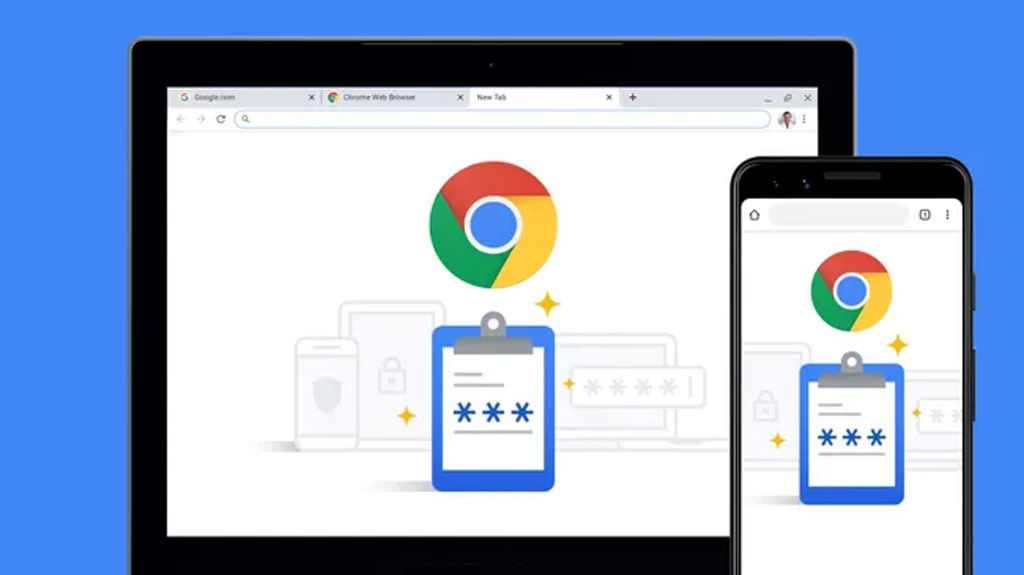
In the modern age, most have at least a dozen digital accounts. For example-E-Mail, Social Media, Payment Service Account. It is very important to keep the passwords safe and safe on these digital platforms. Different sensitive information can be stolen if the password is weak.
So to keep different accounts safe passwords are required, which are unique and long. However, so many passwords do not always remember. Then login to the account has to be hassle. You can use a password manager to solve this problem, which will remember all your login information and password. It will even help create strong passwords. Different companies have password managers. The Google Password Manager is dependent and safe. It can be used for free and works on most devices.
How to setup Google Password Manager
If you are a new Google Password Manager user, the most suitable place to start is Google Chrome on Descot.
Follow the steps below to set up Google Password Manager –
1. Enter Google Chrome from the desktop.
2. Click the three dot (menu) on the upper right tab on any open tab.
3. Tap the 'Passwords and Autofil' option from the menu.
3. Now select the Google Password Manager option.
Here you can edit the password, check the weak and the same password. He will understand how Google Password Manager Chrome will work with.
3. Select this platform setting option to remember all your passwords. Now launch the toggle option next to the 'Offer Save Passwords and Passi' option. As a result, Google's Password Manager will remember all your account passwords.
3. Now you can turn on the 'Sign-in Automatocali' option. As a result, the correct password will be automatically settled when log in an account.
However, to get access to your password from any device, all this information will need to be squeezed with your Google Account. Follow the steps below for the sink-
1. Click on the three dot menu on the upper right of any tab in Chrome.
2. Then select the 'U and Google' option from Settings. If you have not already signed in to Google, you can sign in here.
3. Now click on the 'Sink and Google Services' option.
3. Then click on the 'Manage What you sink' option. Allow other data with passwords and sync on different devices.
Google Password Manager is deeply integrated (included) with Android. It helps save your passwords on the Android device and retrive (recovery) automatically. The following step by step is to set up Google Password Manager Android.
For the Pixel Phone
1. Go to the phone settings.
2. Find the 'Password, Passkis and Accounts' options there and tap it on it.
3. Now setup Google Password Manager as per the instructions shown on the screen.
3. Now the passwords will be automatically saved. Passwords in any familiar app and chrome will automatically sit.
For the Samsung Galaxy Phone
1. Go to the phone settings.
2. Select the 'Security and Privacy' option.
3. Then click on 'More Security Settings'.
3. Now select the 'Password, Passkis and Autofil' option.
3. Now setup Google Password Manager as per the instructions shown on the screen.
3. Now the passwords will be automatically saved. Passwords in any familiar app and chrome will automatically sit.
Android Google Chrome app
Google Password Manager can also be used in Android Google Chrome app. But of course make sure you have signed in to the same Google account.
1. Tap three dots (menu) on the top right on any tab in Google Chrome.
2. Then click on the settings.
3. Then select Google Password Manager.
Now you can view and use your passwords.
Google Password Manager on iPhone
It is possible to use Google Password Manager on the iPhone. However, it is not fully integrated. You need to download Google Chrome from the App Store to use Google Password Manager on the iPhone. Then the settings will be launched in the Google Password Manager in the Chrome of iOS like Android.
Now follow the steps below to use the password manager on the iPhone other than Chrome.
1. Go to the iOS settings.
2. Now select the 'Autofil and Passwords' option from the 'General' option.
3. Then turn on Chrome.
This allows you to sign in using your saved login information to the iOS app other than chrome. However, new information cannot be saved.
Google Password Manager Managing Login Information
Once you set up the Google Password Manager on all devices, everything will be very straightforward. Every time you login to a website or app for the first time, you will be asked if you want to save login information (and if you update the password, another prompt will show). With this permission, when you open a website or app, it will be identified by Google Password Manager and will automatically fill the login information.
Login Information Search and Edit
1. Login to the web interface and you can search for the site or app, or visit the list.
2. Click on the Entry and you can view login information. You will also find the following options.
- Password Manager Settings.
- Password edit or delete options.
- Password Copy Option.
- A note adding option for the password.
- Allows you to completely delete the password.
Password alert
On the Google Password Manager's first page and the Indexual Listing Page you can see a warning about poor passwords, duplicate passwords and passwords published by Data Lee. Whenever you see these warnings, it will need to change your password soon.

